
Report Viewer
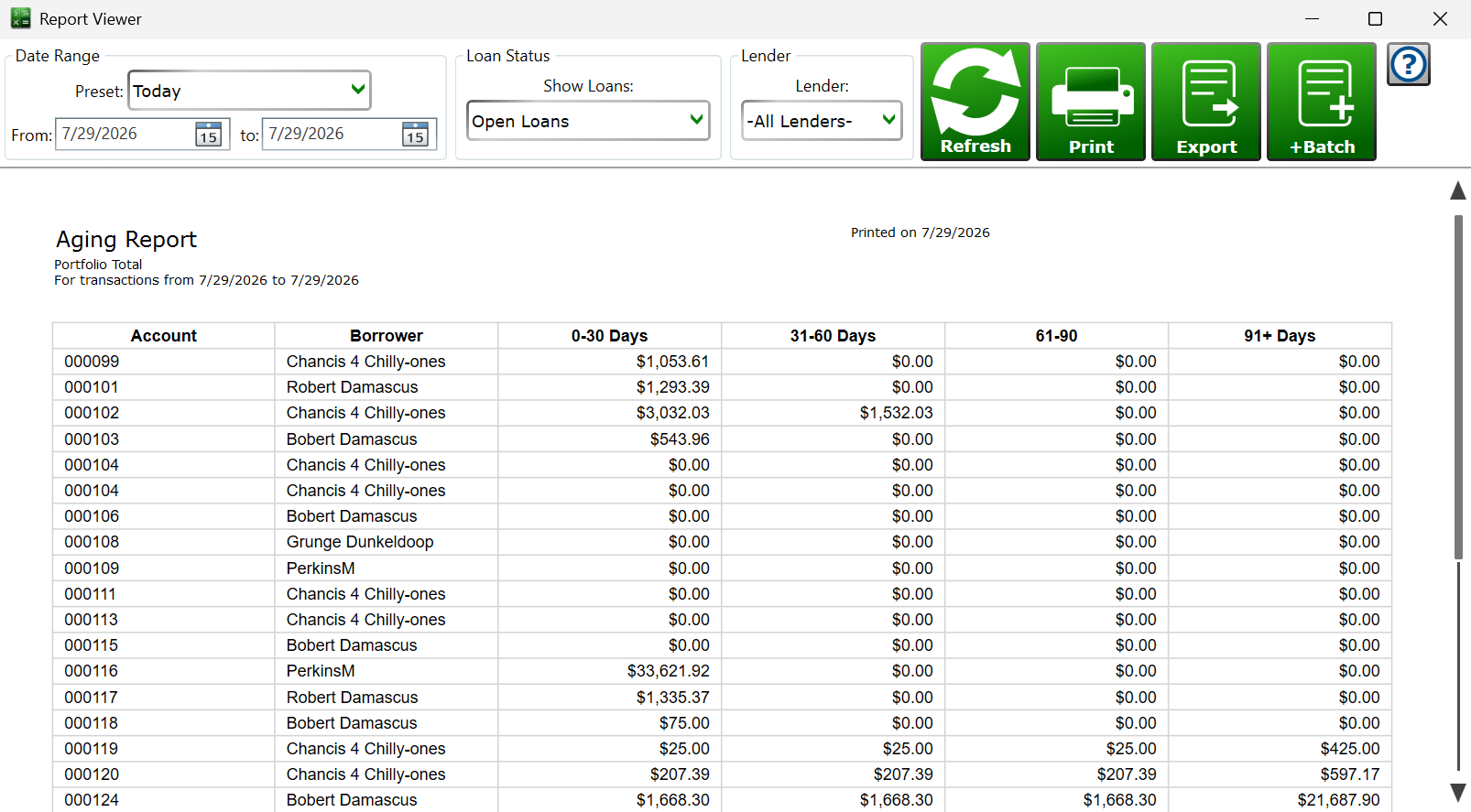
The Report Viewer opens whenever you run a report from the Reports menu.
The viewer shows the generated report and a toolbar of options for re-running the same report different ways, so one report template can answer many questions without editing the template itself. Which options appear depends on the report's type.
Show Account – on ledger reports, choose which of the loan's accounts to display transactions for.
Date Range – pick a preset and the From/to dates fill in automatically, or choose Custom and set the dates yourself, then click Refresh. You can re-run the report for different slices of time as often as you like.
Show Loans – on multi-loan reports, choose which loan statuses are included (open, closed, delinquent, applications, and so on).
Lender – on multi-loan reports, run the report for one lender's loans, choose -All Lenders- for everything, or -Itemize by Lenders- to build a separate table for each lender in the same report.
– re-runs the report using the options currently chosen on the toolbar.
– prints the report using the paper size and orientation set on the report template.
– saves the report's rows as a CSV file you can open in a spreadsheet program like Excel.
– adds this report, with its current toolbar settings, to a report batch so it can be re-run automatically with a whole series of reports.
Moneylender Online: Print uses the browser's print function on the report preview, and Export downloads the CSV file through the browser.
See also: Report Manager, Report Editor, Report Batches