
Print Template
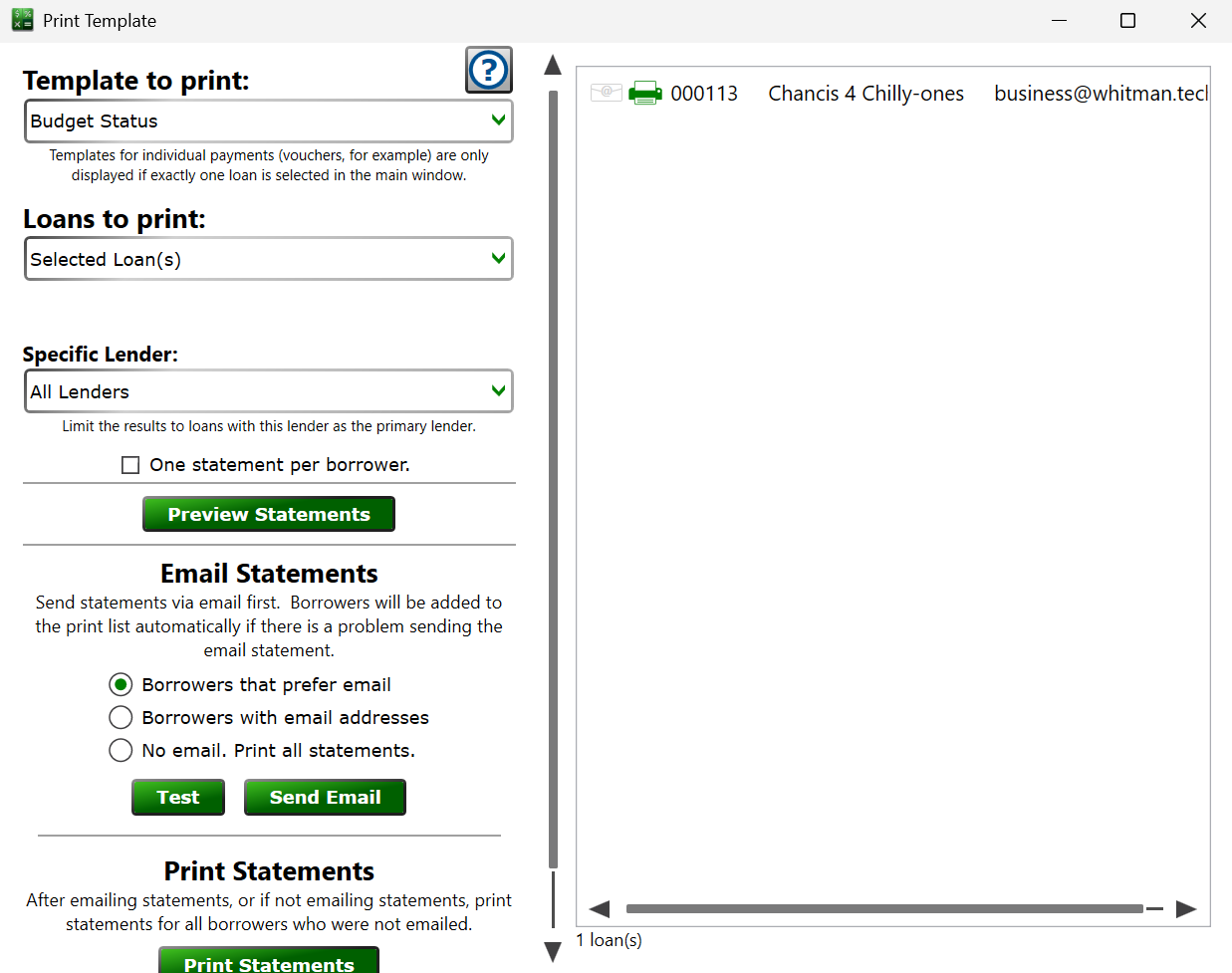
This window opens whenever you print or email statements: pick a template from the Servicing menu, click Send Payoff Quote on the Payoff Calculator, print an escrow analysis or disbursement check, print 1098 forms for borrowers, and so on.
The Print Template window is the central hub for sending statements, letters, notices, and other documents to your borrowers. Choose the template and which loans it should print for, then preview, email, print, or attach the finished statements.
Template to print – pick the statement template to send. Templates for individual payments (vouchers, for example) are only listed when exactly one loan is selected in the main window.
Loans to print – choose which loans get a statement: the selected loan(s), or one of the broader selection choices on the list.
from / through – these date boxes appear for date-ranged templates, such as payment vouchers, and control the range of dates the template covers.
Specific Lender – limit the run to the loans serviced by one lender, or leave it on all lenders.
One statement per borrower. – check the box and borrowers with several loans receive a single combined mailing instead of one envelope per loan.
– draws the statements on screen exactly as they will print, so you can double-check the layout and tag values before sending anything.
Choosing email or paper – pick one of the three delivery choices: Borrowers that prefer email emails the statement to borrowers whose record has the prefers-email box checked and prints for everyone else; Borrowers with email addresses emails everyone that has an email address on file; No email. Print all statements. sends nothing electronically.
– sends the emails to the lender's own email address instead of the borrowers, so you can see exactly what borrowers would receive without actually sending anything to them.
– emails the statements using the template's email settings and your mail server settings. A results window lists any messages that could not be delivered.
– sends the statements to your printer.
– renders the statements and stores each one as a PDF attachment on its loan (see the Attachments tab) without printing or emailing anything.
Moneylender Online: Print Statements opens the combined statements as a PDF in a new browser tab—print from the browser's PDF viewer. Preview Statements opens a read-only preview popup.
See also: Template Manager, Working with Templates, SmartSend