
Import Payments from Excel
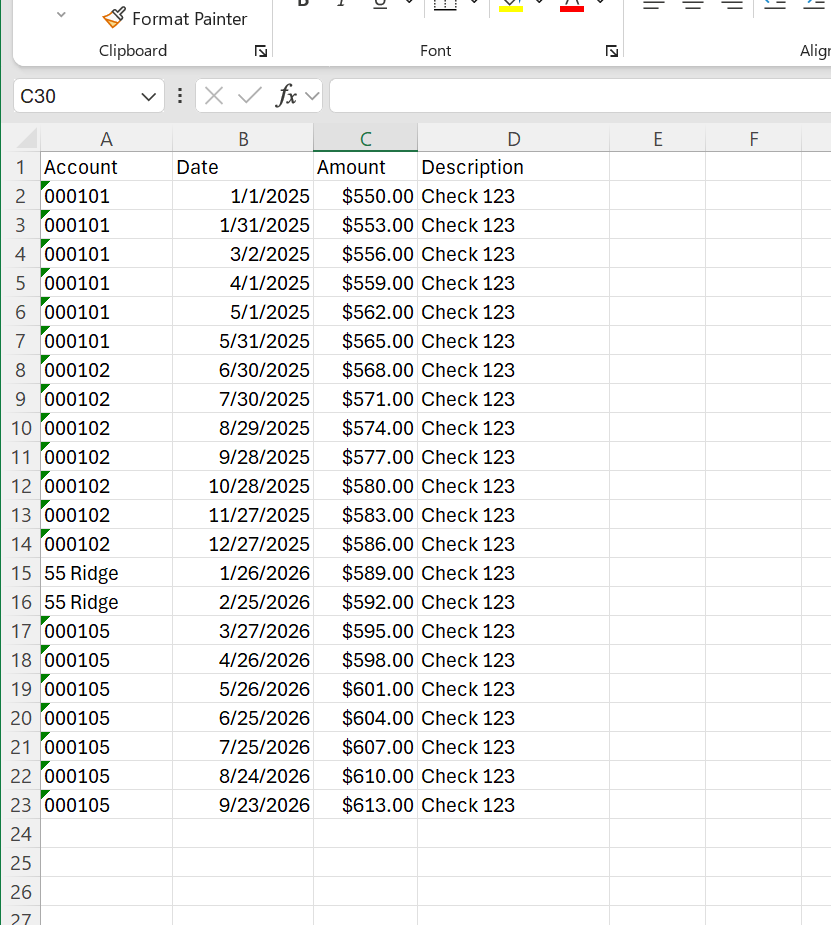
Sample excel file with some payments in a list.
With a portfolio open, click File > Import > Payments to begin.
The Import Payments wizard reads a spreadsheet of payments and records each row as a payment on the matching loan. It's ideal when you receive a batch of payments from a servicer or bank file, or when you track incoming payments in a spreadsheet during the day and post them all at once. Payments should be listed one per row.
Choose the Excel File
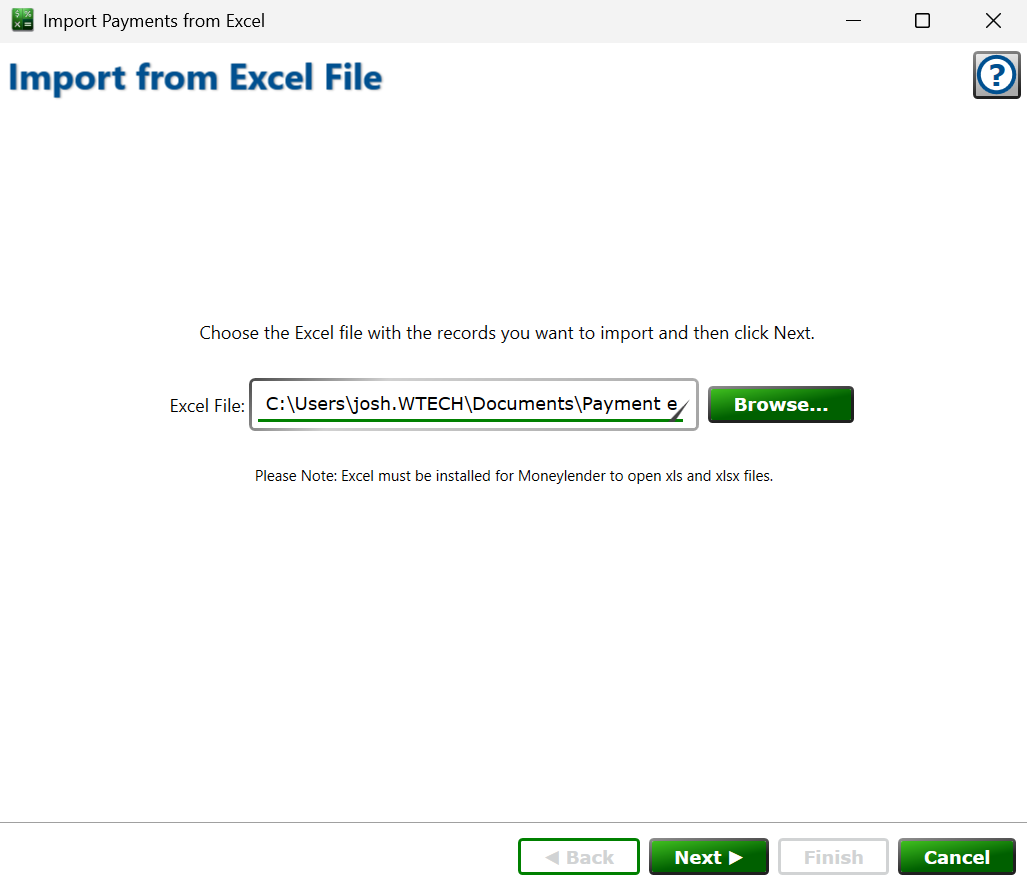
Click Browse and pick the .xlsx file that contains your payments, then click Next.
Map the Fields
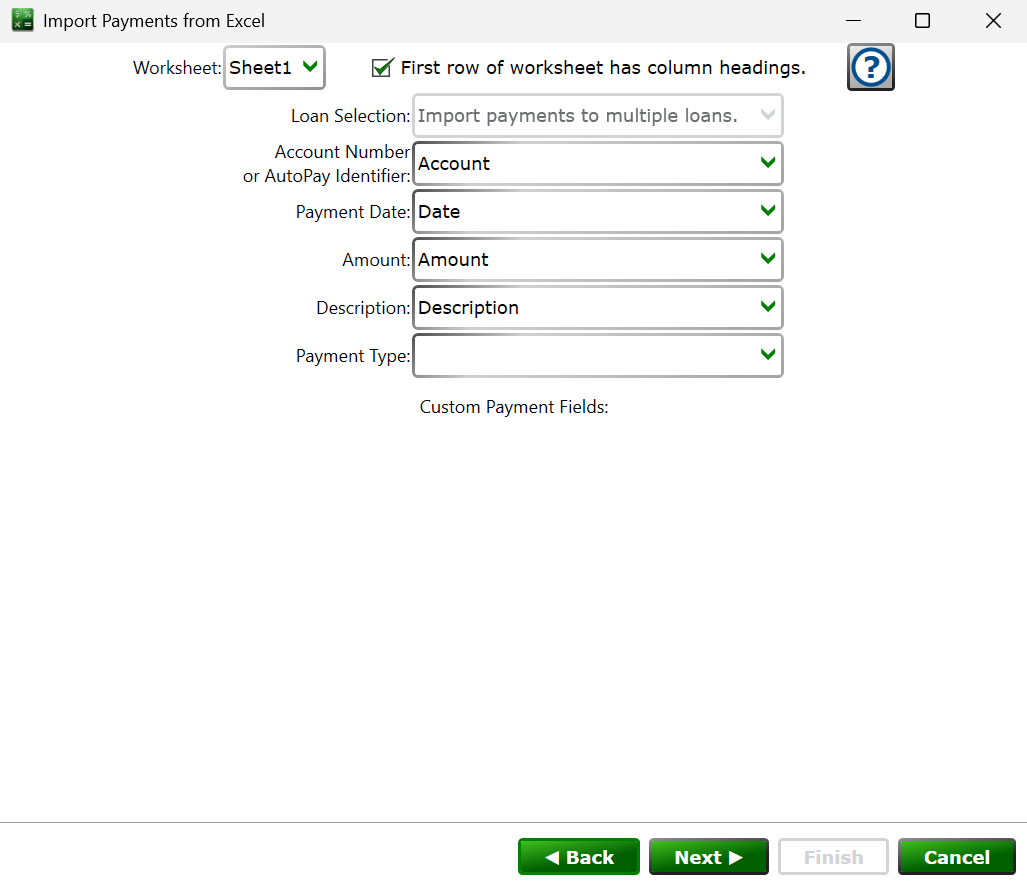
Worksheet – if the file has more than one worksheet, choose the one with your payment rows.
First row of worksheet has column headings. – leave the box checked when row 1 holds column names; the import will start at row 2.
Loan Selection – choose whether every row belongs to the single loan selected in the main window, or the rows cover multiple loans that Moneylender should match automatically. The single-loan choice is only available when exactly one loan was selected before opening the wizard.
Account Number or AutoPay Identifier – when importing for multiple loans, choose the column Moneylender uses to match each row to its loan. The value is compared against the loan's account number, its AutoPay identifier, and the account holder's name.
Payment Date – required. Choose the column with the date of each payment.
Amount – required. Choose the column with the payment amount; rows with a zero amount are skipped.
Description – optionally choose a column to store on each payment's description (check numbers, confirmation codes, etc.), or leave it as -none-.
Payment Type – optionally choose a column with the payment type; rows without a mapped type are recorded as Regular payments.
Custom Payment Fields – if the portfolio defines custom fields for payments, a mapping box appears for each one so the spreadsheet values can be stored on the payments.
Click Next to see a preview of the payments about to be recorded.
Preview and Import
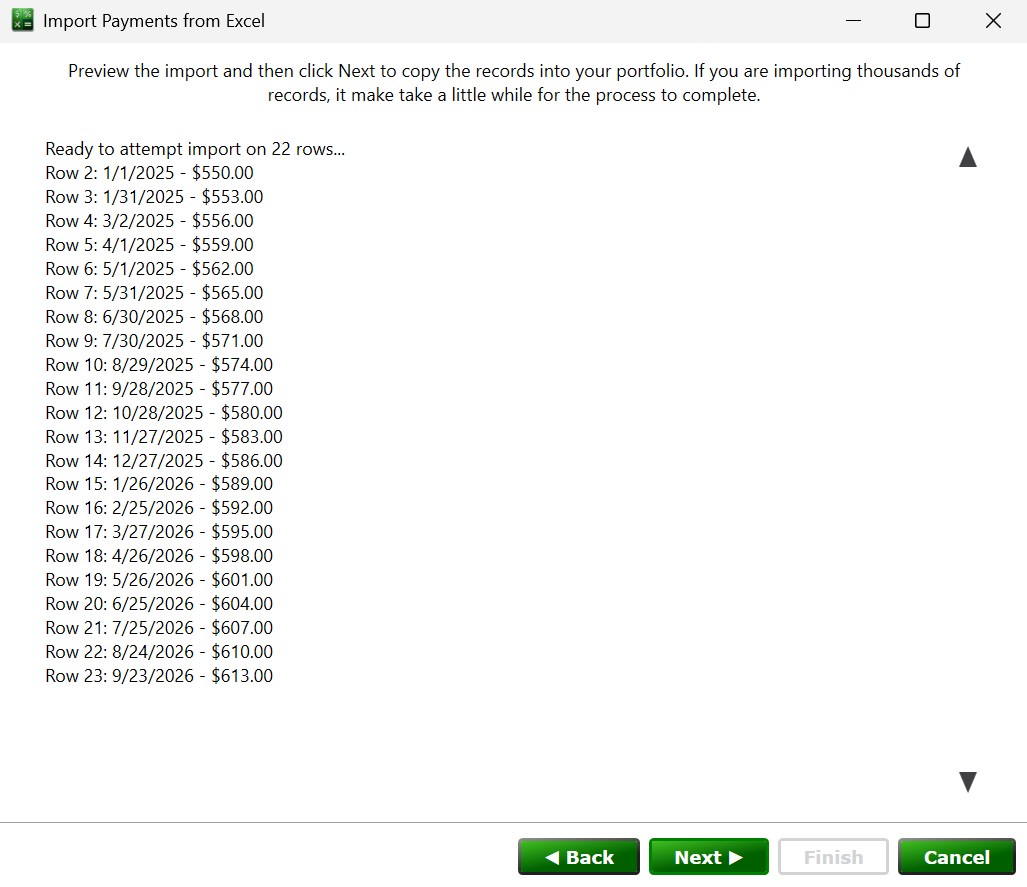
Click Next again to perform the import; the affected loans recalculate as the payments are added. When the import finishes, a summary of the results is displayed—click Copy Results to Clipboard if you want to keep the details for your records.
Moneylender Online: the Excel file is uploaded through the browser and read by Moneylender directly, so Excel does not need to be installed.
Import Outcome Summary
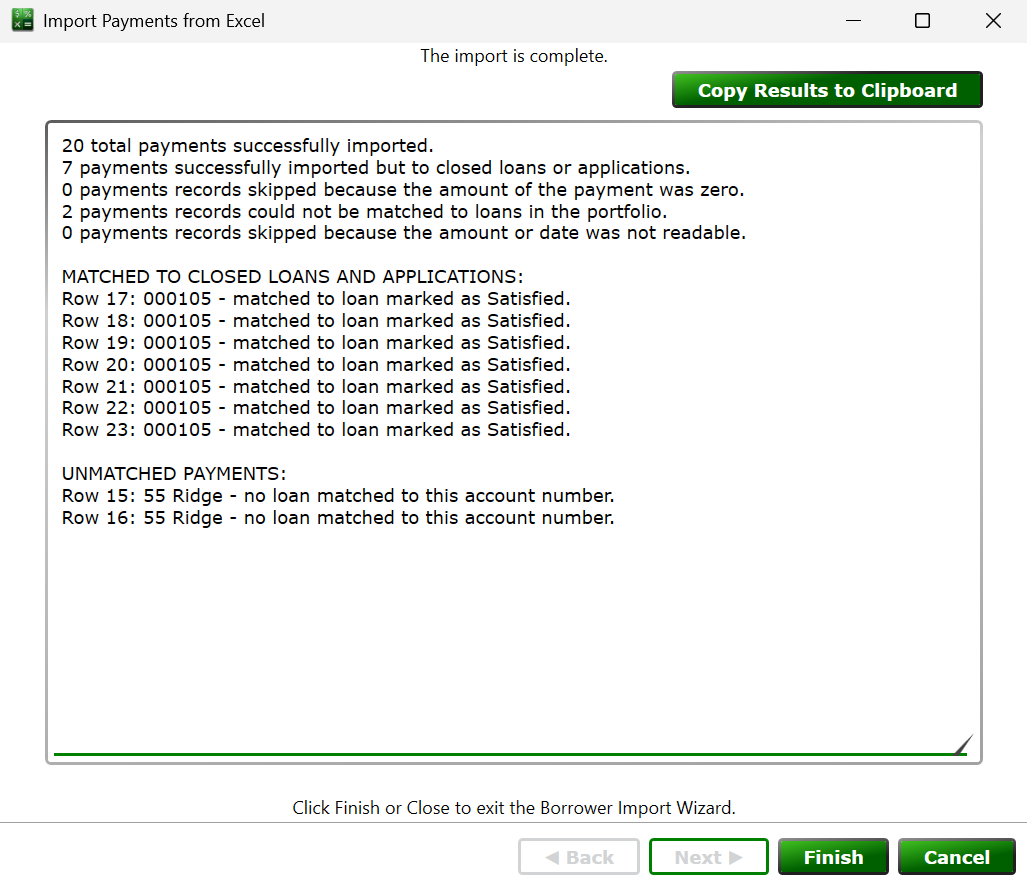
After import, the wizard shows a detailed list of every row that couldn't be matched so you know exactly which payments failed to import automatically and should be manually created. If importing 1000 payments, there may be a few that are not exactly matched for various reasons.
- click this and paste into Notepad if you need to keep a copy of the results to run down the payments that couldn't import.
See also: Importing Borrowers from Excel, Importing Loans, Delete Payments Between Dates