
Moneylender Settings - General
Moneylender Settings - General - Columns - Email - Backup
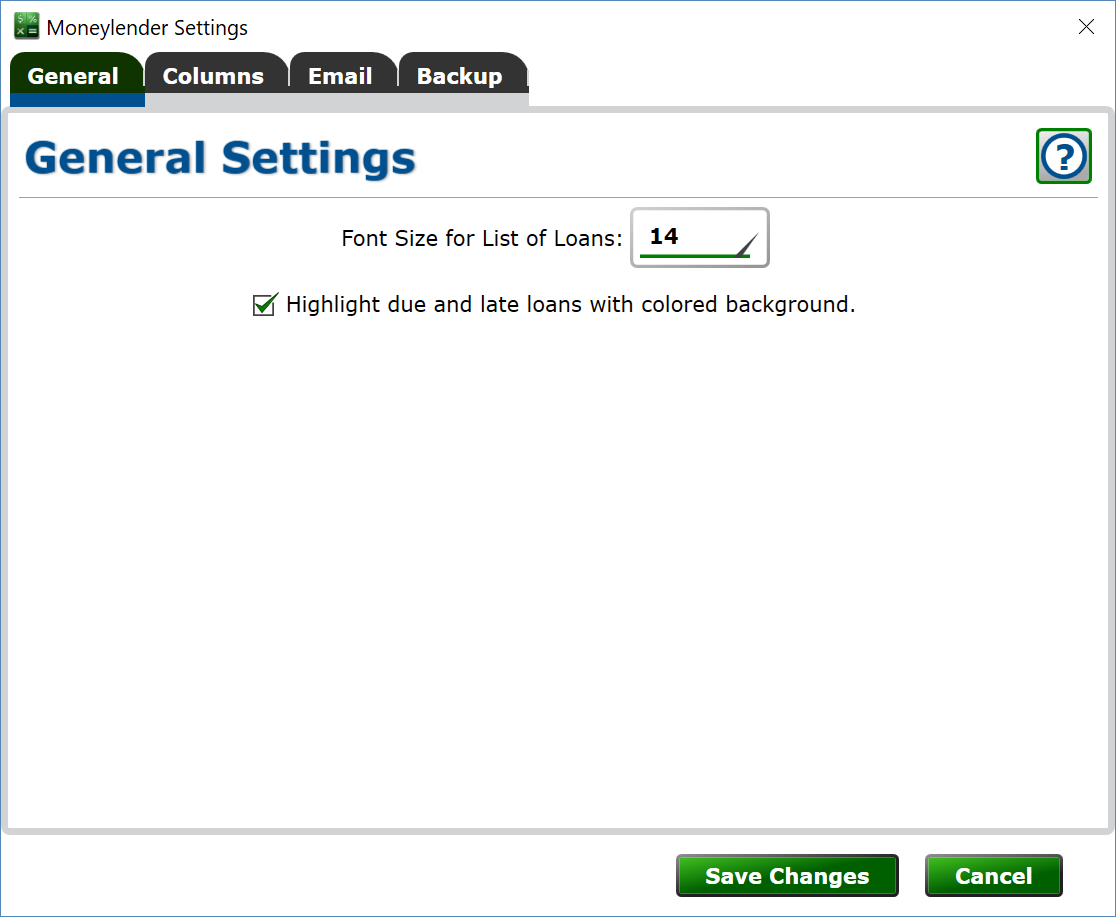
The General tab allows you to:
Set the size of the items in the main list of loans. Make it bigger so it's easier to read, or smaller so you can fit more information on the screen.
Highlight due and late loans with colored background. Check the box and loans that owe any money will have shaded backgrounds indicating how delinquent the loan is.
Show reminder notifications at the bottom of the main window. When a note's reminder date arrives, the note appears in a notifications panel along the bottom of the main window, and double-clicking it jumps to that loan and note. Uncheck the box to keep the panel hidden—the notes and their reminder dates are unaffected, so checking the box again brings back anything that's currently due.
Open the most recent portfolio when Moneylender starts. Check the box to have your last-used portfolio open automatically when the program launches.
Default Portfolio Folder. Type a path or click Browse to choose the folder Moneylender shows first when creating or opening portfolio files; it is also where exports and report batch output are placed by default.
Enable network debug logging. Check the box when troubleshooting connection problems—Moneylender writes a detailed log of network activity for support to review.
Disable the daily refresh routine. Check the box to stop Moneylender from automatically refreshing loan balances at the start of each day.
Disable screenshot when sending crash reports. Check the box if you don't want a screenshot of the program included with automatic error reports.
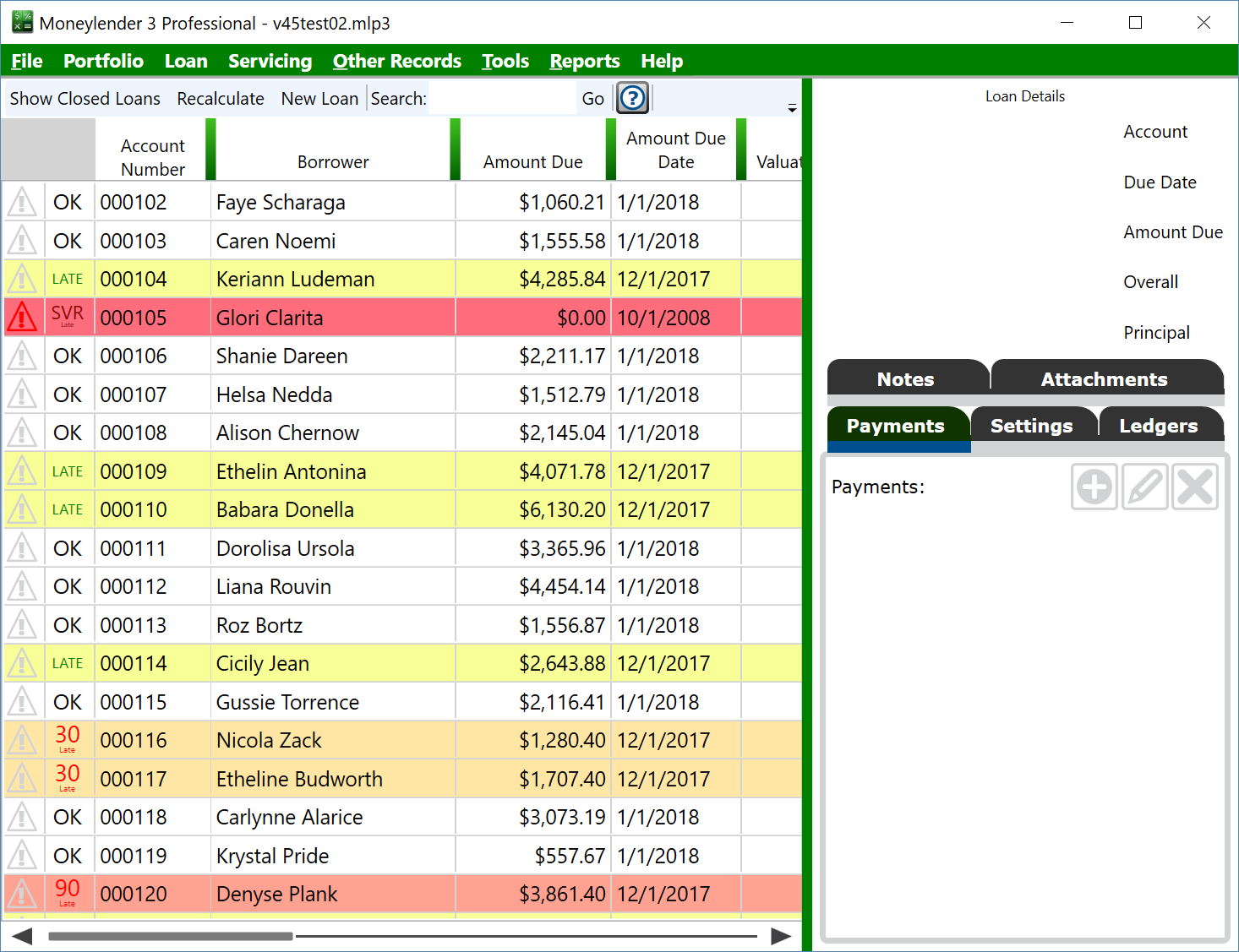
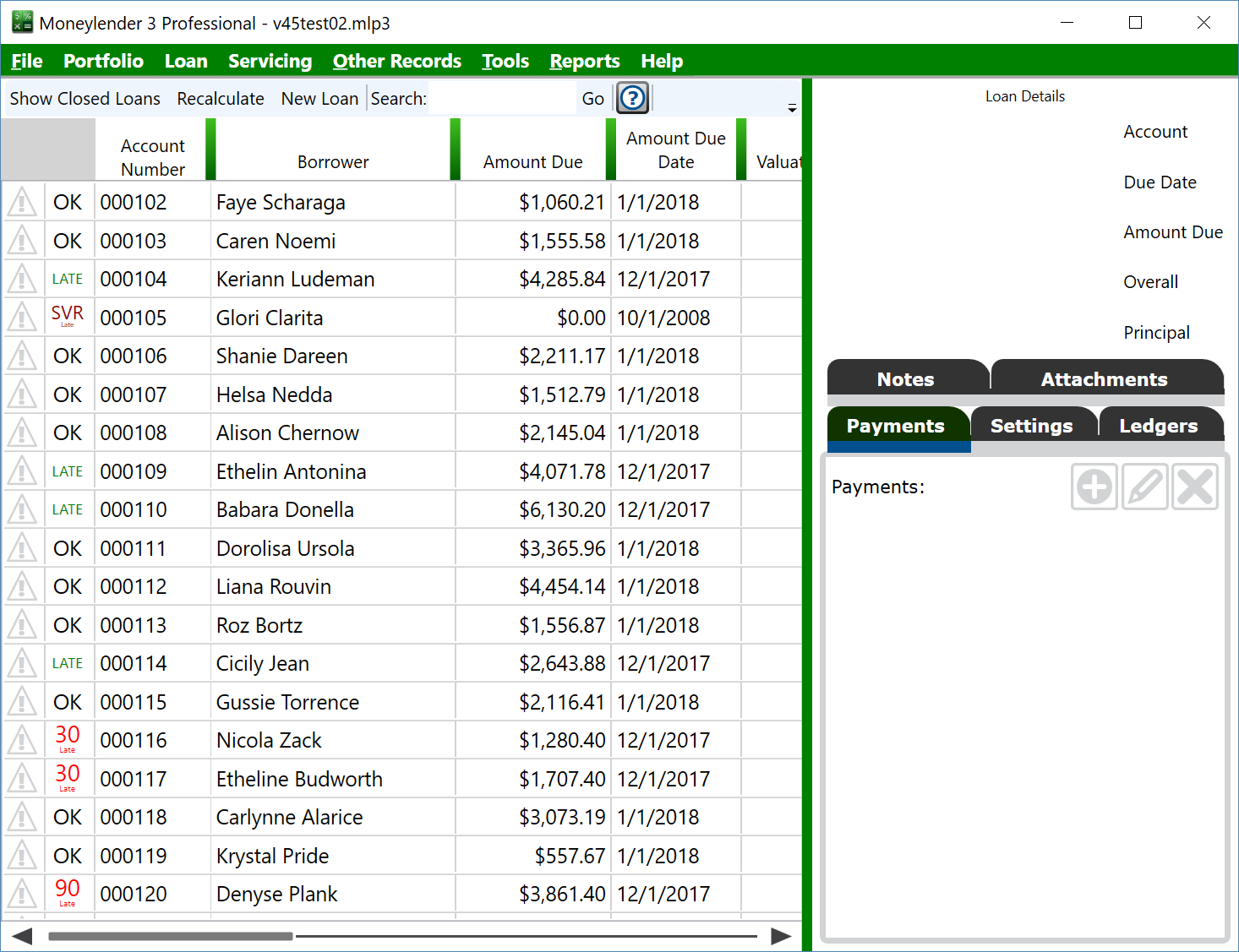
Moneylender Online: the File > Moneylender Settings dialog in Moneylender Online has similar settings—the list font size, the due/late highlighting, the reminder notifications option, and the list of loans columns. Those choices are saved with your portfolio user account rather than on one computer, so they follow you to whichever browser you sign in from.