
Pay Multiple Loans Tool
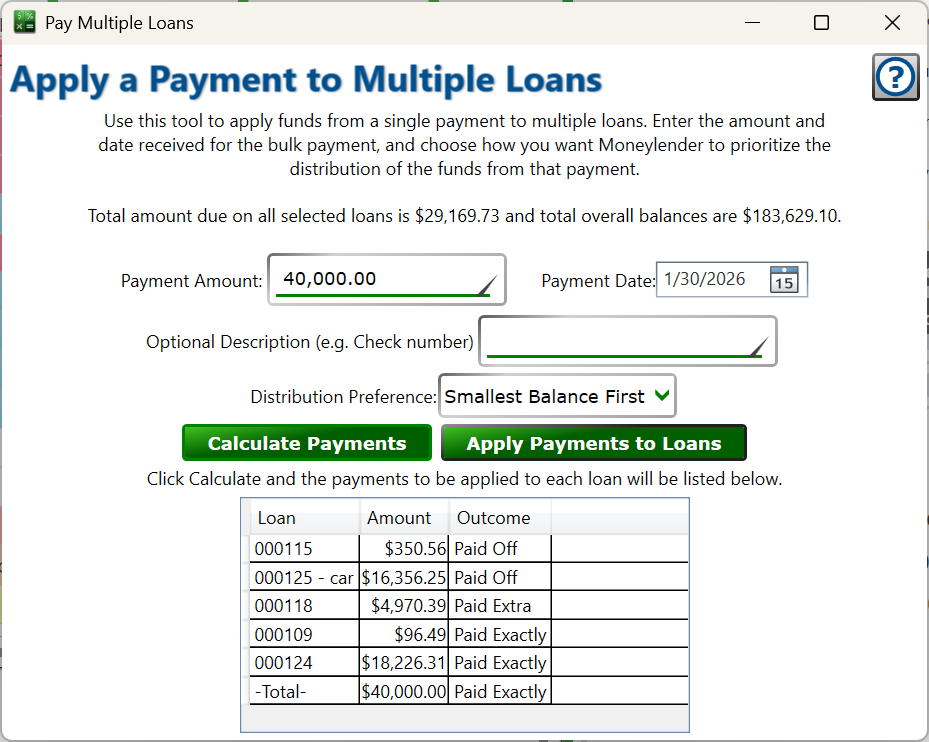
Find this window by selecting more than one loan in the main list of loans (shift-click and ctrl-click to select multiple) and clicking Tools > Split One Payment to Selected Loans.
This tool allows you to specify the amount of a payment and the date it was received. Moneylender will use the current Amount Due and Overall Balance for the loans selected in the main window as reference points for how to distribute the funds from the payment to the individual loans. This tool does not compare dates when determining how to apply payments. Generally, loans should have roughly similar due dates. If one loan is paid substantially farther ahead than the others, consider excluding it from your loan selections before using the tool.
Pro Tip: Sort the main window by borrower to make it easy to select just their loans.
Total amount due and total overall balances for the selected loans are shown for your convenience.
Payment Amount - Enter the amount of the combined payment you received from the borrower.
Payment Date - Enter the date you received the combined payment.
Optional Description - Enter a check number, payment method, or any other information you'd normall put in the payment description when recording a payment. The description will have "split from $X" added to the end of it for each of the payments created by this tool.
Distribution Preference - Choose how Moneylender will split up the payment:
- Proportional to Amount Due - Funds will be divvied up so they apply to the loan proportionally for the amounts due. If the payment is 50% more than the total amounts due for all loans, this tool will create payments that are 50% larger than the amount due for each loan individually. Similarly for underpayment, if the combined payment is only half what's due, the individual payments will be half of what's currently due on each loan.
- Highest Rate First - The loans will be sorted in the order of highest interest rate to lowest. The tool will pay the amount due on each loan until funds are depleted. If all loans can be paid for the full amount due, the tool will apply the overpayment to the first loan (with the highest interest rate). If the entire overall balance can be paid for the first loan, funds will then be applied to the second loan, and so on until funds are depleted. If the payment can pay off all the balances with funds to spare, the final payment in the list will be overpaid so no money is unaccounted.
- Smallest Balance First - The loans will be sorted in the order of smallest balance to the highest. The tool will pay the amount due on each loan until funds are depleted. If all loans can be paid for the full amount due, the tool will apply the overpayment to the first loan (with the smallest balance). If the entire overall balance can be paid for the first loan, funds will then be applied to the second loan, and so on until funds are depleted. If the payment can pay off all the balances with funds to spare, the final payment in the list will be overpaid so no money is unaccounted.
- Largest Balance First - The loans will be sorted in the order of highest balance to the lowest. The tool will pay the amount due on each loan until funds are depleted. If all loans can be paid for the full amount due, the tool will apply the overpayment to the first loan (with the highest overall balance). If the entire overall balance can be paid for the first loan, funds will then be applied to the second loan, and so on until funds are depleted. If the payment can pay off all the balances with funds to spare, the final payment in the list will be overpaid so no money is unaccounted.
- Account Number Order - The loans will be sorted by the account number, ascending. The tool will pay the amount due on each loan until funds are depleted. If all loans can be paid for the full amount due, the tool will apply the overpayment to the first loan. If the entire overall balance can be paid for the first loan, funds will then be applied to the second loan, and so on until funds are depleted. If the payment can pay off all the balances with funds to spare, the final payment in the list will be overpaid so no money is unaccounted.
Calculate Payments - After setting or changing the information about the payment, click the button to have the tool determine the payment split and display the resulting payments in the grid below.
Apply Payments to Loans - After clicking Calculate, click this button to have the payments shown added to their respective loans.
Split Payment List - after clicking Calculate Payments, the individual payments will be shown here for your review. Each amount and the loan it corresponds to is shown along with the outcome of that payment.
- Paid Exactly - the payment equals the amount due on the loan.
- Underpaid - the payment was less than the amount due.
- Paid Extra - The payment amount is more than the amount due.
- Paid Off - The payment amount equal to the overall balance on the loan - sufficient to pay it off exclusive of any fees that might be due at closing.
The last entry in the list is a total of the payments generated, which lets you verify if the totals of the individual payments does indeed match the Payment Amount you entered.
Note: This tool does not do any special handling for closing a loan, such as calculating per-diem interest or applying fees marked to be collected when the loan closes. Generally, the final payment on a loan should be done separately and under the guidance of the Payoff Calculator. If there are no special concerns about per-diem interest or closing fees, once a split payment is added by this tool that pays the overall balance, you can use the Closing Wizard to perform a final zeroing of the loans balances.